TIA Openness Manager
TIA Openness with AI workflows, now AnyAutomation Studio
The tool for exporting, comparing and generating TIA Portal blocks over TIA Openness has become AnyAutomation Studio, an Automation Engineering IDE in which an AI assistant with project context works directly on your TIA Portal project, from V15 to V21. The download is AnyAutomation Studio, and existing accounts keep signing in as before.
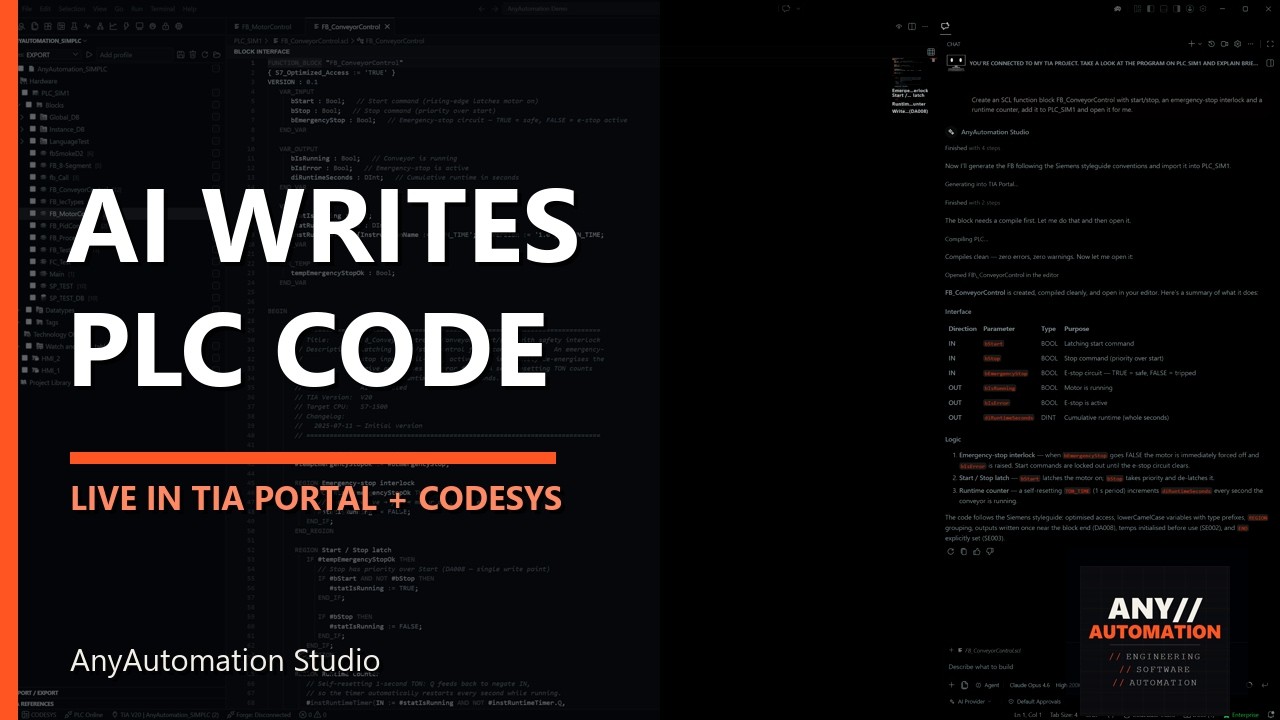
Four steps, one loop, all over TIA Openness
The AI workflow for TIA Portal
Export over TIA Openness
Blocks, tag tables and HMI content leave the project as XML and SCL files with their folder structure, S7DCL included from V20, the hardware configuration as AML. The export folder is the working copy for AI, diffs and Git.
The AI understands the project
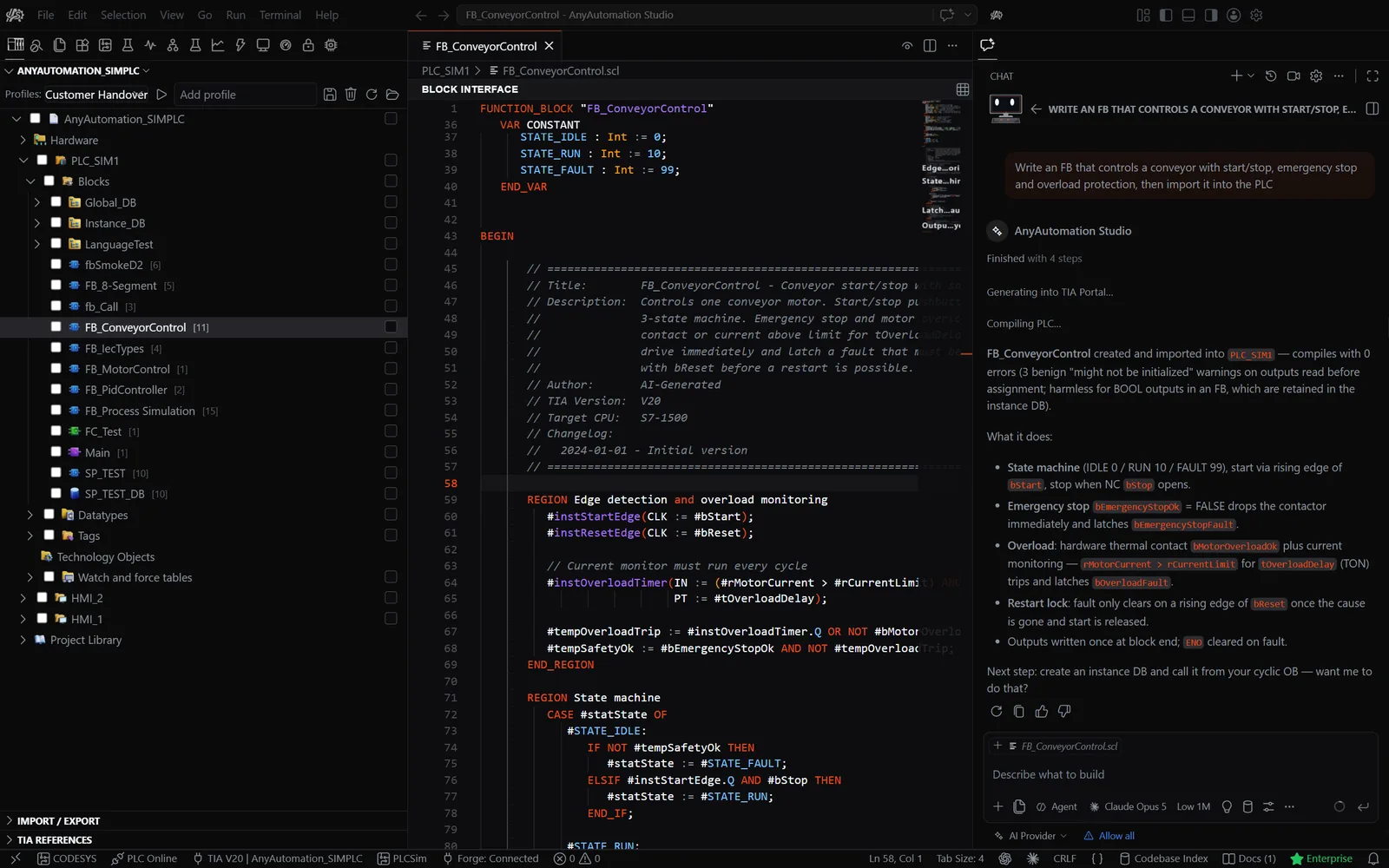
Chat with project context: the assistant reads blocks, explains and documents program logic, and finds every use of a tag with Project Search.
The AI generates, reviews and tests
SCL blocks from a description with the real variable names of your project, STL converted to SCL, a review against the Siemens programming style guide, and unit tests on PLCSIM Advanced or a real S7 PLC.
Import back over TIA Openness
Every import shows a diff preview and waits for your confirmation. Then compile, compare the project against the export folder, and commit the result to Git.
TIA Openness capabilities
What AnyAutomation Studio does over TIA Openness
Import and export over TIA Openness
Bulk export and import with folder structure, as XML and SCL, S7DCL from V20, WinCC Unified included. The AI exports, changes and imports blocks the same way, always with a diff preview.
- Export and import selected objects or the whole project
- Diff preview with tri-state selection
- Compile after import with status per block
- Protected items that Import All skips
Generate SCL with AI
The assistant knows your project and writes SCL with its variable names and data types. It converts STL to SCL, reviews code against the Siemens programming style guide and completes code inline as you type.
- Claude, GPT, Gemini, Grok and further cloud providers
- Local models via Ollama, LM Studio, vLLM and SGLang
- Expert agents and skills
- Your own API key, no detour through AnyAutomation servers
Compare and search
The Compare Editor shows two projects, or a project and an export folder, block by block and merges differences back. Project Search finds and replaces across the whole project, tag tables included.
- Project against project or export folder
- Merge differences back block by block
- Search and replace down to the tag tables
- Text search inside graphical blocks from V20
Git and CI/CD
Built-in source control for the export folder: stage, commit, branch and sync, with a commit message written by the AI. Versioned XML and SCL exports and a command-line test runner connect TIA Portal to your CI/CD pipeline.
- Stage, commit, diff, branches, sync
- AI commit message
- Versioned XML and SCL exports
- Command-line test runner for pipelines
PLC Online and OPC UA
Live to the controller without TIA Portal open: OPC UA client and S7 driver, address-space browser, watch tables and live values right in the SCL editor. Trace records signals like a scope.
- OPC UA client and native S7 driver
- Address-space browser and watch tables
- Live values in the SCL block editor
- Trace with triggers and CSV export
Unit tests and know-how protection
SCL unit tests run on PLCSIM Advanced or a real S7 PLC, with suites the AI writes for you. The Password Vault keeps know-how-protection passwords AES-256 encrypted, and Find Unused clears unreferenced blocks.
- Unit Testing on PLCSIM Advanced or a real S7 PLC
- AI-authored test suites
- Password Vault with AES-256, bulk protect and unprotect
- Find Unused with cleanup
AI in AnyAutomation Studio
The AI works on the project, not next to it
AI tools
Claude, GPT, Gemini and Grok, further cloud providers, enterprise clouds such as Azure OpenAI, Google Vertex AI and AWS Bedrock, or local models via Ollama, LM Studio, vLLM and SGLang. You bring your own API key, and requests never pass through AnyAutomation servers. The assistant works with these tool sets:
Agents
Delegates sub-tasks to specialised agents and runs several sessions side by side.
TIA Portal blocks and project
Reads, generates, exports, imports and edits blocks, tag tables and the project tree over TIA Openness.
Files
Reads and writes files in the export folder and the workspace.
Docs
Searches documentation sites you add, such as vendor manuals and standards.
EPLAN
Reads EPLAN Electric P8 data and derives tag tables and hardware topology from it.
OPC UA
Browses the address space, reads and writes values and watches live data on the controller.
Forge
Searches your block-type library, captures types from a project and deploys them into a connected PLC.
SCADA
Generates a runnable web SCADA from the project.
Trace
Starts signal recordings and evaluates recorded traces.
Canvas
Builds interactive dashboards and overviews with gauges, charts and controls straight from the chat.
Unit tests
Writes test suites, runs them on PLCSIM Advanced or a real S7 PLC and reads the results.
Visual context
Looks at application windows and, after your confirmation, clicks or types in the applications you allow.
Commissioning
Fills in the Commissioning Report with stations, IO checklist and live IO checks.
Sub-agents and Best-of-N
The assistant delegates sub-tasks to specialised agents; Best-of-N runs the same prompt in two to five parallel, isolated sessions so you keep the best result.
MCP client
Connect external MCP servers and use their tools next to the built-in TIA Portal tools. AnyAutomation Studio is the client, never a server for your project.
Import with confirmation
Generated code goes back into TIA Portal over TIA Openness only after you have seen the diff preview and confirmed it.
Clips and screenshots from the current release
AnyAutomation Studio in action
Project Search - AnyAutomation Studio
Project Search
Search and replace across the whole TIA Portal project, tag tables included
Compare Editor - AnyAutomation Studio
Compare Editor
Two projects block by block, with merge back
AI
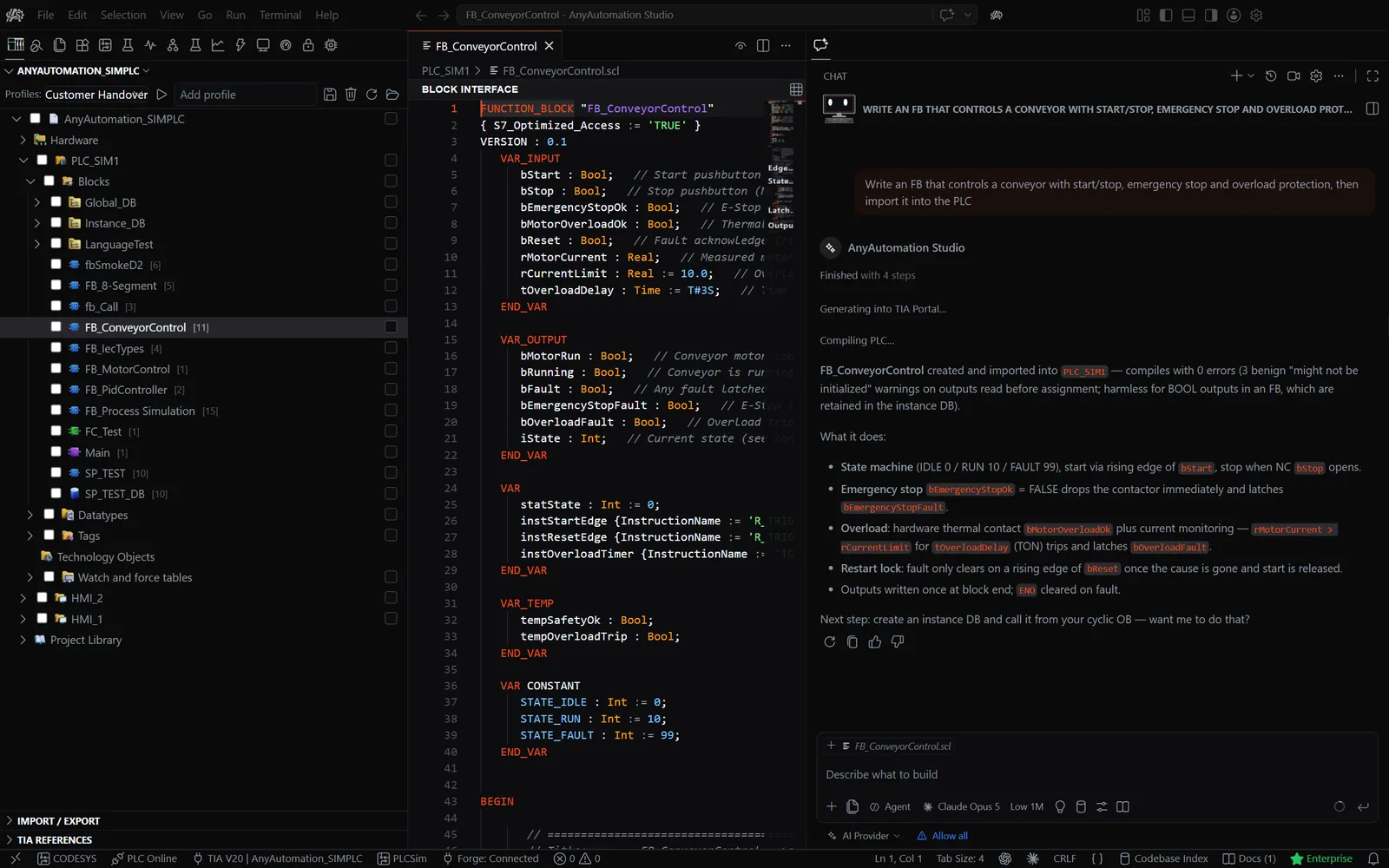
AI chat with project context
Explain and document program logic, generate SCL, convert STL, with confirmation before every import
- Knows blocks, tags and project structure
- Explains and documents program logic
- Generates SCL and converts STL
- Confirmation before every import
AI chat with project context - AnyAutomation Studio
TIA Openness
Import and export
Diff preview between project and export folder, tri-state selection, compile after import
- Selected objects or the whole project, folder structure kept
- XML and SCL, S7DCL from V20
- Diff preview with tri-state selection
- HMI content and hardware included
Import and export - AnyAutomation Studio
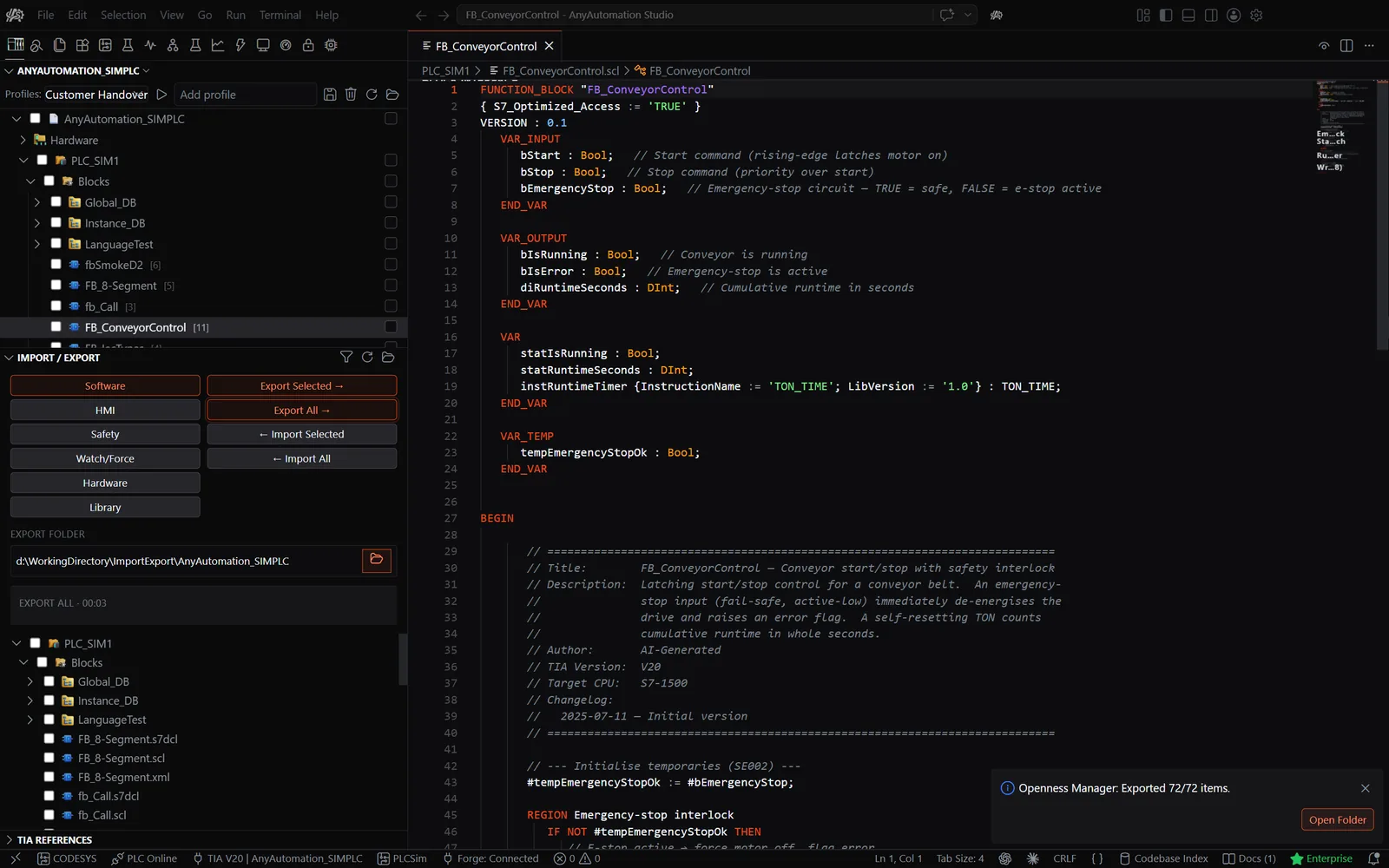
PLC Online
Live values in the SCL editor
Go online and watch every value right in the source, with compare badges per block
- Go online straight from the block editor
- Current value of every variable in the source
- Online and offline compare badges per block
Live values in the SCL editor - AnyAutomation Studio
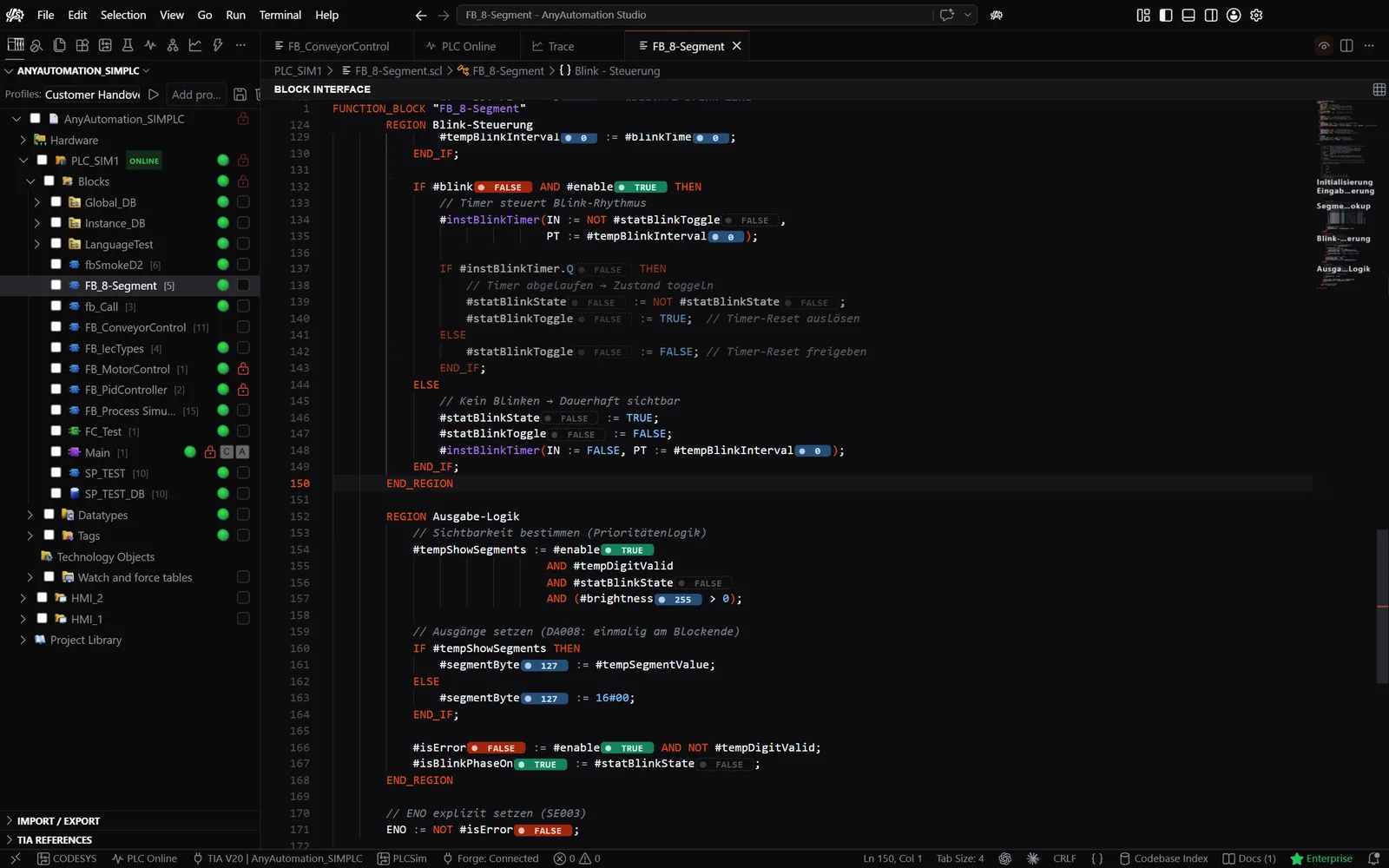
Testing
Unit Testing
SCL unit tests on PLCSIM Advanced or a real S7 PLC, results and assertions in real time
- PLCSIM Advanced or a real S7 PLC
- Test suites written by the AI
- Results, assertions and errors live
- Run history and trends
Unit Testing - AnyAutomation Studio
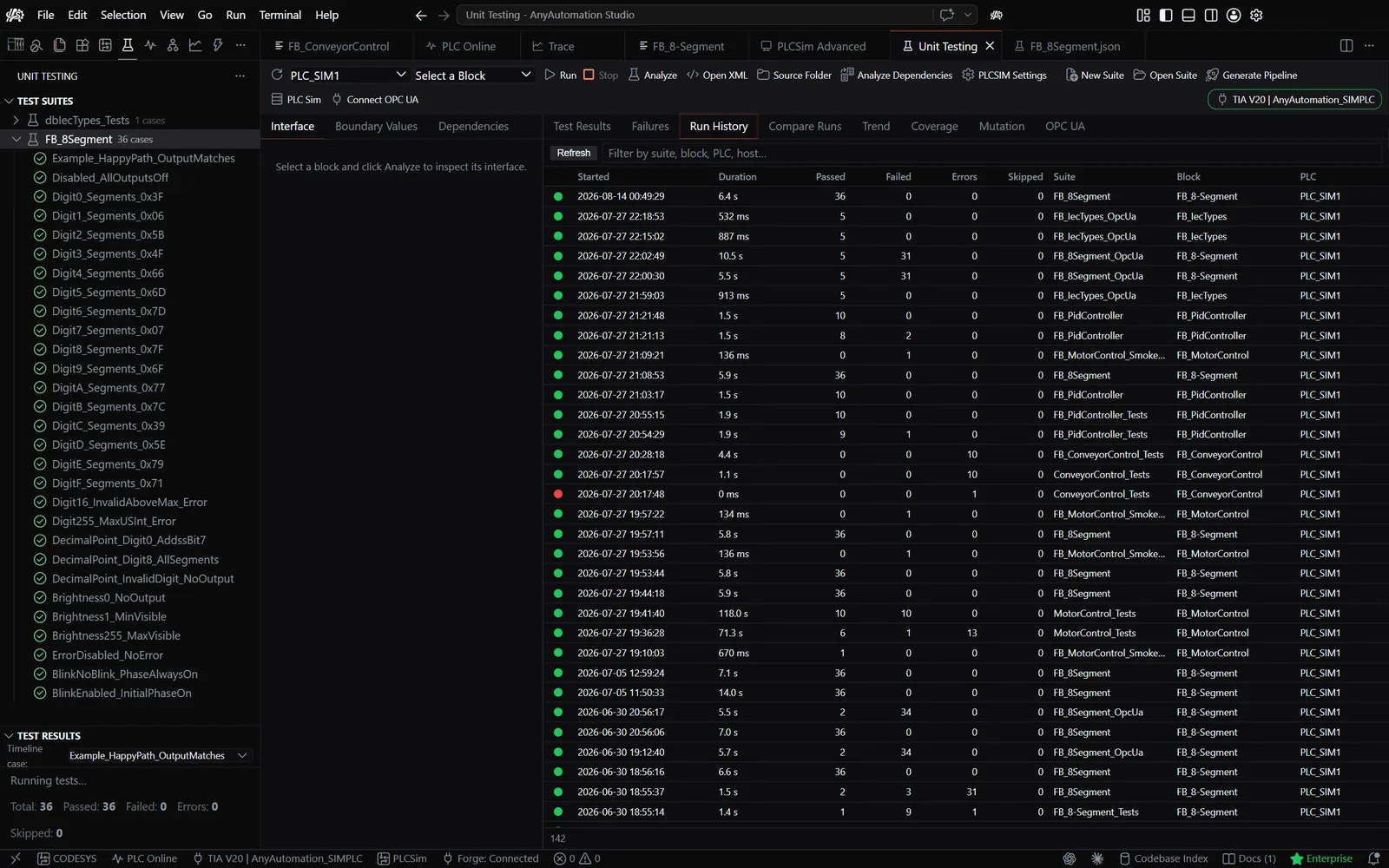
Connectivity
OPC UA client
Browse the address space, read and write variables, watch tables, without TIA Portal
- Browse the address space
- Read and write variables
- Watch tables with live subscriptions
- Native S7 driver as an alternative
OPC UA client - AnyAutomation Studio
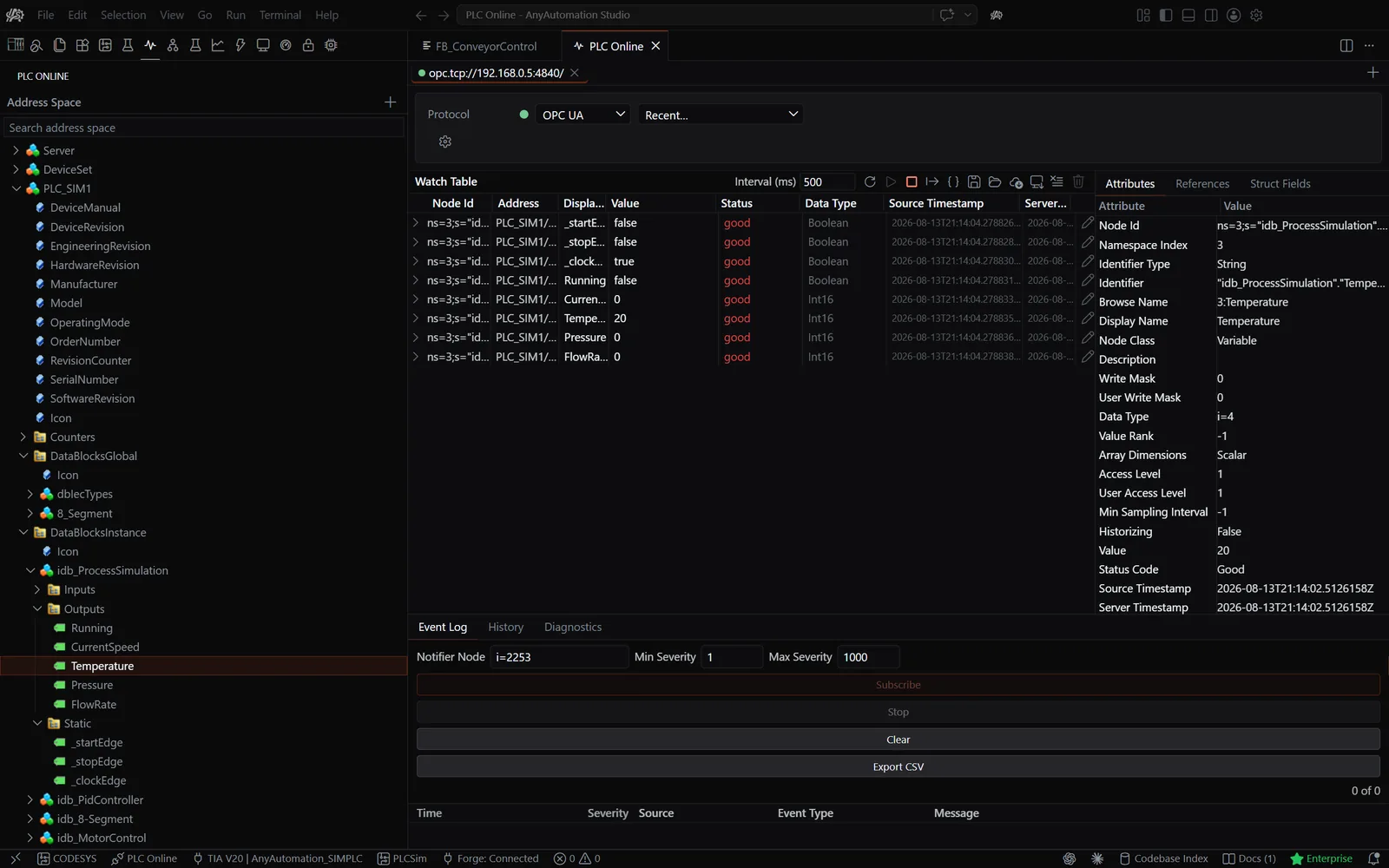
Editor
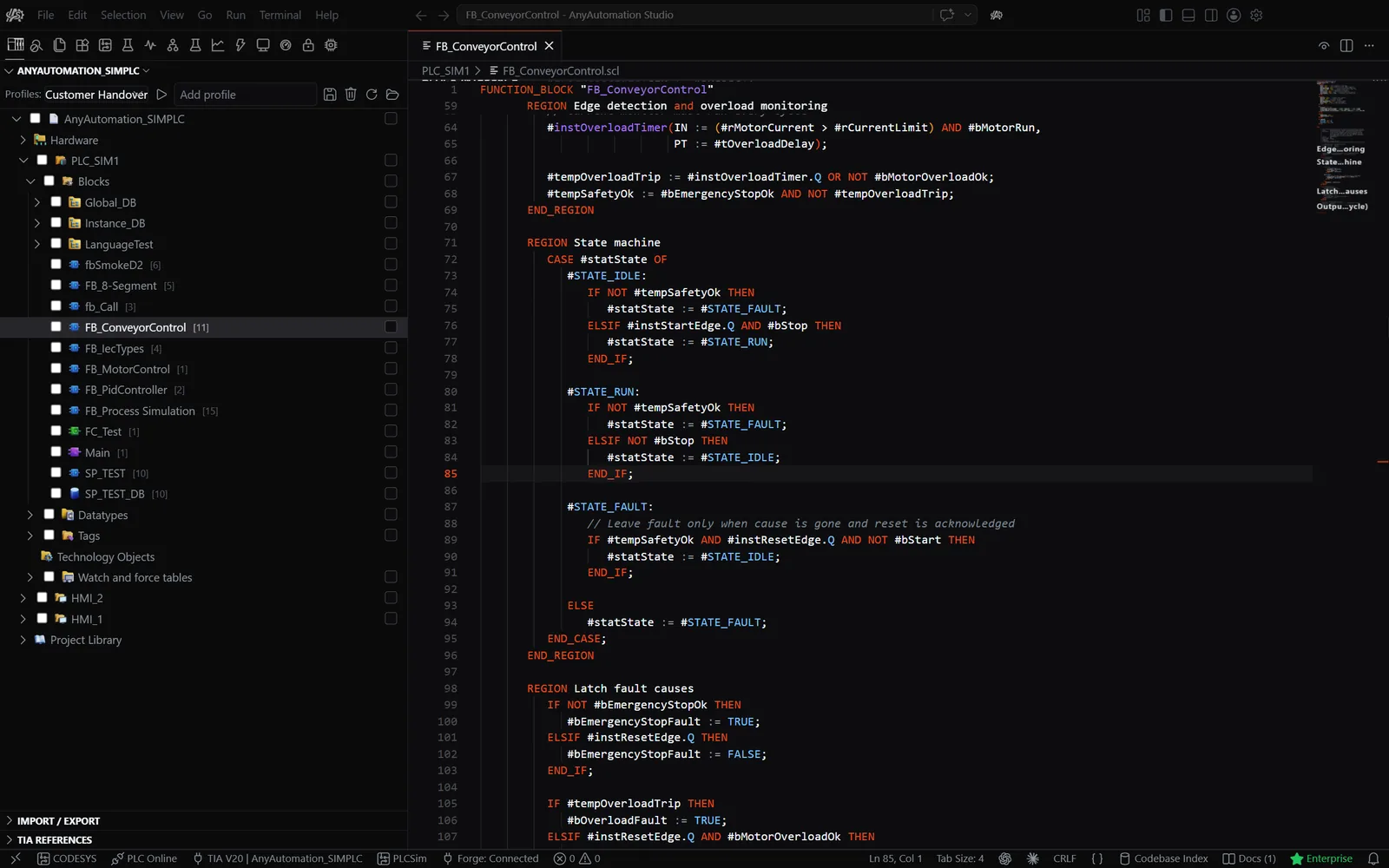
SCL editor
Block source with syntax highlighting, compile diagnostics and inline completion
- SCL syntax highlighting
- Block source opened from the project tree
- Compile diagnostics in the Problems panel
- Inline AI completion, accepted with Tab
SCL editor - AnyAutomation Studio
Git workflow
How teams work with Git
Any number of developers work on the same project in parallel: no locks, no waiting, no central server required. AnyAutomation Studio can write the commit message with AI, and you can ask the assistant to review the change before you commit it. The commissioning engineer pulls the exact released state on site, imports it into TIA Portal and downloads it to the PLC. If your team works in TIA Multi-User sessions instead, AnyAutomation Studio opens and edits those as well.
Three developers, three branches, one project
Each developer works on a dedicated branch and commits independently. When a feature is ready, the team reviews it in a pull request and merges it into "main". The project lead sets a release tag for commissioning, so the exact state is reproducible at any time.
TIA Multi-User vs. Git
TIA Portal Multi-User Server
Git with AnyAutomation Studio
Parallel work
TIA Multi-User: Object-level locks on check-out. Whoever checks out first blocks everyone else on that block.
Git + AnyAutomation Studio: True branches: any number of developers can edit the same block at the same time, conflicts are resolved line by line on merge.
Version history
TIA Multi-User: Linear, project-bound, tied to the multi-user server.
Git + AnyAutomation Studio: Full history going back years, line by line, with author and rationale.
Server requirement
TIA Multi-User: Dedicated TIA Multi-User server plus licenses required.
Git + AnyAutomation Studio: Any Git host: GitHub, GitLab, Azure DevOps, on-premise Git, or even a USB stick.
Offline work
TIA Multi-User: Limited: server connection needed for check-out and check-in.
Git + AnyAutomation Studio: Fully offline-capable. Synchronization happens once the connection is back.
What gets versioned
TIA Multi-User: TIA Portal project objects only.
Git + AnyAutomation Studio: PLC code, HMI, documentation, configuration files, and test suites, all in one repository.
Code review
TIA Multi-User: Not part of the workflow.
Git + AnyAutomation Studio: Pull-request workflow with diffs, comments, review approvals, and branch protection.
Release management
TIA Multi-User: Project snapshot without semantic versioning.
Git + AnyAutomation Studio: Git tags per commissioning state, semantic versioning, clear release notes.
Maintaining multiple plant variants
TIA Multi-User: Difficult. The server only knows one state per project.
Git + AnyAutomation Studio: One branch per plant. Bugfix for all plants? Commit once, cherry-pick onto every plant branch.
Tooling ecosystem
TIA Multi-User: Only TIA Portal itself.
Git + AnyAutomation Studio: CI/CD, issue trackers, code-review platforms, and automated test pipelines.
Reproduce a commissioning state
TIA Multi-User: "Which server revision was live back then?" Hard to reconstruct after the fact.
Git + AnyAutomation Studio: Check out the release tag and the exact code state is restored, line for line.
From repository to PLC: the commissioning flow
How the commissioning team pulls a released state onto the laptop, downloads it to the physical PLC, and documents the as-built state back into the repository.
Step 01
Check out release tag
The commissioning engineer opens the repository on the laptop and pulls the released state, for example "release/site-XYZ-v2.1". The exact code is then available locally.
Step 02
Bulk import into TIA Portal
AnyAutomation Studio imports all blocks, HMI elements and UDTs in one step over TIA Openness. The repository folder structure is recreated 1:1 inside TIA Portal.
Step 03
Compile with live status
Compile status is visible per block. Errors can be jumped to and fixed directly, before the PLC is even connected.
Step 04
Download to PLC
The verified state is downloaded from TIA Portal to the physical PLC. Commissioning runs with the code the team approved. No surprises on site.
Step 05
Export on-site adjustments
On-site adjustments such as IP addresses, plant parameters, or ad-hoc corrections are exported back and committed. The as-built state lands in the repository.
Step 06
Push as-built tag
The real commissioning state gets a tag, for example "as-built/site-XYZ". When the plant needs an update two years later, that exact state is reproducible.
What goes through TIA Openness
Supported TIA Portal elements
PLC blocks
Organization blocks (OB), function blocks (FB), functions (FC) and data blocks (DB) including global, instance and array DBs. User-defined data types (UDT), tag tables, technology objects and software units. Safety blocks (FOB, FFB, FFC, FDB) included.
HMI elements
Screens and popups, screen templates, HMI tag tables, VB scripts, PLC/HMI connections, text lists and graphic lists. WinCC Unified screens, popups, templates, tag tables, scripts and text lists are exported and imported as well.
TIA Portal V15 to V21
One installation works with TIA Portal V15 through V21; version differences are handled for you. S7DCL export and import from V20. TIA Portal must be installed on the same machine but does not have to be running: projects also open straight from the project file.
Also supported: CODESYS 3.5 projects
Open CODESYS 3.5 projects, browse the objects as a tree, view block code and export to PLCopenXML. A local CODESYS installation is required.
Where the assistant does the work
AI workflow in practice
Agents that work on the project
The assistant delegates sub-tasks to specialised agents, and Best-of-N runs the same prompt in two to five parallel, isolated sessions so you compare the results and keep the best. External tools connect over the MCP client.
Commissioning with AI
Live IO checks against the controller, a Commissioning Report for FAT and SAT with photos, signatures and PDF export, and Hardware Simulation on PLCSIM Advanced when the cabinet is not there yet.
Alternative to Siemens Industrial Copilot
Your provider, your model, your key: in the cloud or fully local, and from TIA Portal V15 upwards, so existing projects are covered too.
Account, files and views at a glance
Switching from TIA Openness Manager
What has changed
The desktop tool became an Automation Engineering IDE. The TIA Openness core stays: export, import, compare, vault, Find Unused. New around it: AI chat with project context, PLC Online, Unit Testing, Forge, EPLAN Connector, CODESYS and SCADA.
Your account
Sign in to AnyAutomation Studio with your existing account. Export folders and .vault files from TIA Openness Manager open unchanged. Whether your existing subscription is recognised in AnyAutomation Studio is shown in your account after sign-in; the current plans are on anyautomation.ch.
Getting started
Download the signed installer, run it with administrator rights and sign in. The installer registers AnyAutomation Studio in the TIA Openness whitelist for you; the installation guide covers the Siemens TIA Openness user group and the first connection.
Coming from TIA Openness Manager?
Development moved into AnyAutomation Studio, an Automation Engineering IDE from the same maker. Everything that ran over TIA Openness in TIA Openness Manager is there, plus AI chat with project context, PLC Online, Unit Testing and more. The release notes of every version are on GitHub, and the overview of the switch maps the old tabs to the new views.
Yes. Sign in to AnyAutomation Studio with the e-mail address of your existing account; you receive a one-time code by e-mail, as before. Whether your existing subscription is recognised is shown in your account afterwards; activation, hardware binding and organisation seats are explained in the licence model.
Yes, TIA Portal must be installed on the same machine, but it does not have to be running: AnyAutomation Studio opens a project straight from the project file or attaches to a running TIA Portal instance. Your Windows user must be a member of the Siemens TIA Openness group; the Openness setup guide walks you through it.
TIA Portal V15 through V21 on Windows 10 and 11, 64-bit. S7DCL export and import and the text search inside graphical blocks are available from V20.
Yes. Export folders keep their structure and open as before, and .vault files from TIA Openness Manager decrypt unchanged in the Password Vault of AnyAutomation Studio.
Only what you allow. AnyAutomation Studio runs locally, you bring your own API key or a local model, and requests go straight from your machine to the provider you chose, never through AnyAutomation servers. Every change to the project shows a diff and waits for your confirmation. Details under security and data handling.
No. AnyAutomation Studio is an MCP client: you connect external MCP servers, and their tools appear next to the built-in TIA Portal tools in the chat. Your project is not exposed to other AI clients.
Download AnyAutomation Studio
The current version is on GitHub, digitally signed, with automatic updates after installation. Try the full feature set for 30 days, then decide.
- Windows 10/11 64-bit
- Signed installer
- 30-day trial with the full feature set
- No credit card
Download, account and support in one place
Quick access
Download
AnyAutomation Studio is the successor to TIA Openness Manager. Sign in with your existing account.
Account & Licence
Manage your subscription, switch hardware, or cancel, all in your personal account.
Support
Questions about your account or licence? We are happy to help.